
I build a dictation app that transcribes on-device by default, so I spend a lot of time staring at network traffic — mine and other people's. The thing that surprised me, when I started looking closely, wasn't the apps that admit they're cloud tools. It was the ones that don't. "Private," "local," and "on-device" have become marketing words, not architectural ones. The only way to know what an app actually does is to watch it do it.
Good news: macOS hands you everything you need to check. You don't need to be a network engineer. You need about ten minutes and four tools, three of which are already installed. Let's audit your Mac.
First, understand what Apple won't tell you
Most people's instinct is to open Activity Monitor, click the Network tab, and call it a day. That tab is genuinely useful — it shows you how many bytes each process has sent and received, so you can spot a "local" app that's quietly streaming megabytes every time you use it.
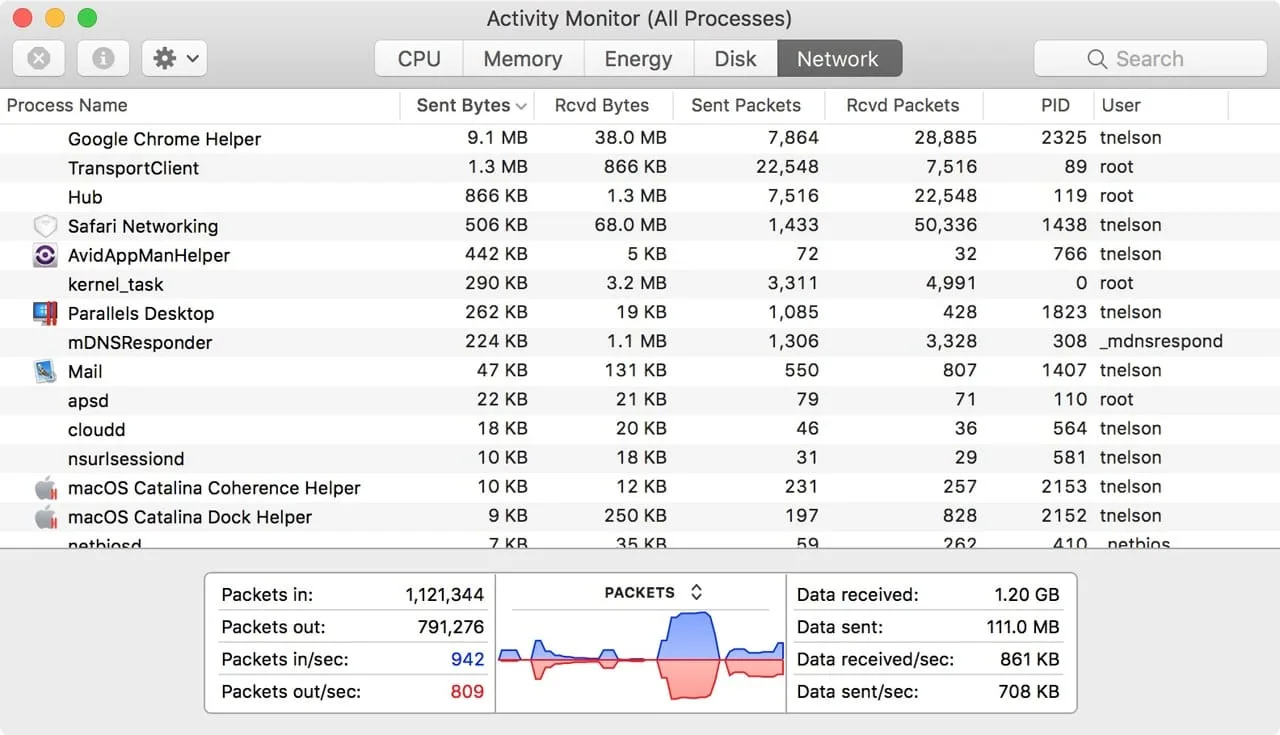
Activity Monitor's Network tab shows how much data each process moves — but never where it's going. Screenshot via OWC's Rocket Yard; Apple documents the tab here.
But here's the catch, and it's the whole reason this article exists: Activity Monitor shows you volume, never destination. It tells you an app sent 4 MB. It does not tell you to whom. And macOS's built-in firewall is no help either — it only blocks incoming connections. Nothing Apple ships out of the box will stop, or even name, an outbound connection to a server in another country. That gap is exactly where a "local" app's data quietly walks out the door.
The two-second test that beats every privacy policy
Before any terminal commands, do the dumbest, most decisive test there is: turn off the network and try to use the app.
Click the Wi-Fi menu, turn Wi-Fi off (unplug Ethernet too if you're wired in), and then use the feature you care about — transcribe some audio, generate a summary, run the "AI" thing. Then watch what happens:
- It works exactly as before → the model is running on your Mac. Genuinely local.
- It hangs, errors, spins, or says "check your connection" → the work was happening on someone else's computer. The "app" is a thin client for a cloud API.
This single test cuts through every clever sentence a privacy policy can construct. A tool can call itself "private" all it wants; it cannot transcribe your voice on a server it can't reach. If pulling the plug breaks it, your words were leaving the building.
Now watch the connections directly
The airplane-mode test tells you whether an app needs the cloud. The terminal tells you what it's talking to in real time. Open Terminal (it's in Applications → Utilities) and meet two commands that have shipped with every Mac for years.
lsof — a snapshot of every open connection
lsof lists open files, and on a Unix system a network socket is a file. To see every live network connection on your Mac, with numeric ports and no slow DNS lookups:
lsof -i -n -PThe -n skips hostname resolution (faster), -P shows raw port numbers. To see only connections that are actually live, filter for established ones:
lsof -i -n -P | grep ESTABLISHEDAnd to interrogate one suspicious app by name — say it shows up as SomeVoiceApp in Activity Monitor — find its process ID there and run:
sudo lsof -i -a -p <PID>The -a tells lsof to AND the filters together so you only get that process's network sockets. (Add sudo when you want to see other users' and system processes, not just your own.) Each line ends with the remote address and port — that's the cloud server, named at last.
nettop — a live feed of who's sending what
Where lsof is a snapshot, nettop is a live ticker, like top for the network. The cleanest view for an audit collapses everything to a per-process summary:
nettop -PLeave it running, then go use your "local" app. If the bytes-out column climbs every time you dictate, type, or hit the AI button, you've caught it in the act. You don't need sudo for this. Want only the relevant traffic? nettop -m tcp restricts it to TCP, where virtually all cloud API calls live.
The upgrade: a firewall that asks permission
The tools above are observational — they show you what's happening but can't stop it. The next tier is interceptive: an outbound firewall that pauses every new connection and asks you to allow or deny it, naming the destination right there in the prompt. This is the single most clarifying thing you can install on a Mac you care about.
Two options, and I genuinely recommend starting with the free one.
LuLu is free, open-source (GPL-3.0), and made by Patrick Wardle — a well-known Mac security researcher whose entire body of work is about catching software that misbehaves. LuLu does one job well: it blocks unknown outgoing connections and asks you first. Install it, and the next time a "private" app reaches for a server, you'll get a pop-up naming the server. No more guessing.
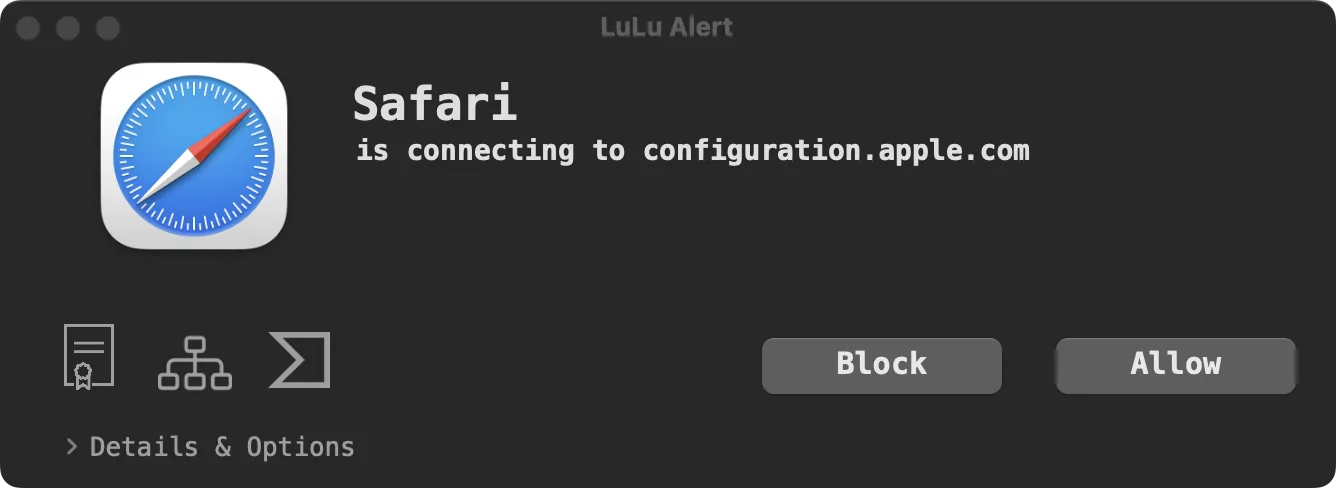
LuLu, the free open-source firewall, intercepts an outbound connection and asks you to allow or block it. Screenshot via objective-see.org.
Little Snitch ($59 one-time, currently version 6) is the polished paid option that's been doing this for two decades. Beyond the allow/deny alerts, its Network Monitor draws you a live map of every server your Mac is talking to — location, data volume, port, protocol. If you want to actually see the shape of your machine's outbound life, it's worth the money.
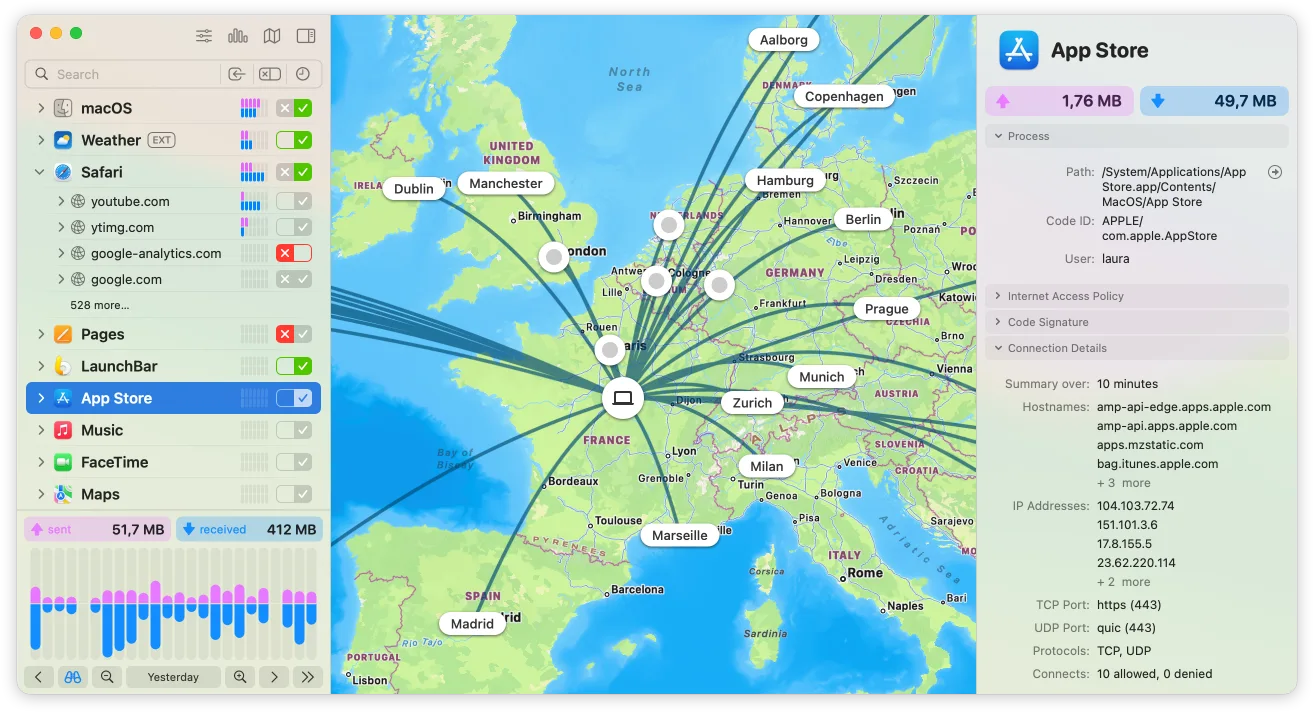
Little Snitch's Network Monitor maps every server your Mac connects to — destination, volume, and port. Screenshot via obdev.at.
Either one turns the abstract question "is this app private?" into a concrete event: a dialog box, with a server name in it, the instant the app tries to phone home.
Reading the softer signals
Network watching is the proof. But there are tells you can read before you even open Terminal, and they're worth a quick gut-check on anything new you install:
- It forces an account or login before it'll work. A model running on your own Mac doesn't need to know who you are to run. Mandatory sign-in to transcribe or summarize is a strong hint the work happens server-side. (Not absolute — some honest local apps gate licensing behind a login — but it's a flag.)
- It's tiny and instant with no model download. Real on-device speech recognition ships or downloads a substantial model — hundreds of megabytes to several gigabytes. A 12 MB app that transcribes instantly is almost certainly handing the audio to a server.
- The privacy policy has an opt-in "privacy mode." Read the wording. If you have to flip a switch to stop your data being stored or used for training, then storing and training is the default. Wispr Flow, a popular dictation app, openly states in its own documentation that "transcription always happens in the cloud," with an opt-in Privacy Mode you have to enable to stop retention. That's not a scandal — it's disclosed — but it's exactly the kind of default your audit exists to surface.
And the cloud defaults aren't hypothetical. In August 2025, Otter.ai was hit with a class-action lawsuit alleging its notetaker silently recorded meetings and used the recordings to train its models — filed, notably, by someone who wasn't even an Otter user but had been captured by someone else's bot. We wrote about that case in depth. The point of an audit isn't paranoia. It's that "trust us" has a worse track record than "let me check."
What a clean result looks like
Here's the part I can speak to directly, because it's the bar we built EmberType to clear. Run every test above against it with a local model selected and your dictation never touches the network. Dictate for an hour with Wi-Fi off — it works. Watch nettop -P while you talk — the bytes-out column doesn't move. Point Little Snitch at it and the only connections you'll see are license activation, update checks, in-app announcements and any model download you start — never your audio or transcripts. Choose a cloud model with your own API key and you'll see that traffic too, going to the provider you picked, which is exactly what an audit should show.
That's not a clever privacy setting. It's the default architecture. EmberType runs Whisper, the speech-recognition model OpenAI open-sourced in September 2022, entirely on your Mac's own silicon. The model weights live on your disk; transcription happens in local memory. There's no speech API to call unless you add your own key, so there's no voice traffic for an audit to catch. The quiet network is the product.
That's the standard worth holding every "private" app to. Not the wording on the landing page — the reading on nettop. Now you know how to take it.
Audit it yourself.
EmberType runs Whisper AI fully on your Mac by default. Pull the plug, watch the traffic, point a firewall at it — with a local model, your audio and transcripts never leave. That's the whole design.
Download EmberType Free7-day trial. $39 one-time after. macOS 14+, Apple Silicon. No account required to transcribe.

Free Mac Dictation Tips
Privacy-first voice-to-text, offline workflows, and the occasional reminder to check what your apps are sending. No spam.
Unsubscribe anytime. We never share your email.
You're in! Check your inbox.