
EmberType Documentation
Everything you need to know to get the most out of EmberType.
Last updated: February 9, 2026
Installation and Setup
-
Download EmberType
Download the DMG file from the website or your purchase confirmation email. -
Open the DMG
Double-click the downloadedEmberType.dmgfile to mount it. -
Drag to Applications
Drag the EmberType icon to your Applications folder. -
Launch EmberType
Open EmberType from your Applications folder. If macOS blocks it, right-click the app and select "Open", then click "Open" again in the dialog.
Note: EmberType requires macOS 14.0 (Sonoma) or later and runs on Apple Silicon Macs.
Required Mac Permissions
EmberType requires two system permissions to function properly:
Accessibility Permission
This allows EmberType to type transcribed text into any application.
- Go to System Settings > Privacy & Security > Accessibility
- Click the + button
- Navigate to Applications and select EmberType
- Toggle it ON
Microphone Permission
This allows EmberType to record your voice for transcription.
- Go to System Settings > Privacy & Security > Microphone
- Find EmberType in the list
- Toggle it ON
Important: If permissions aren't working, remove EmberType from both lists and re-add it from /Applications/EmberType.app.
AI Model Selection
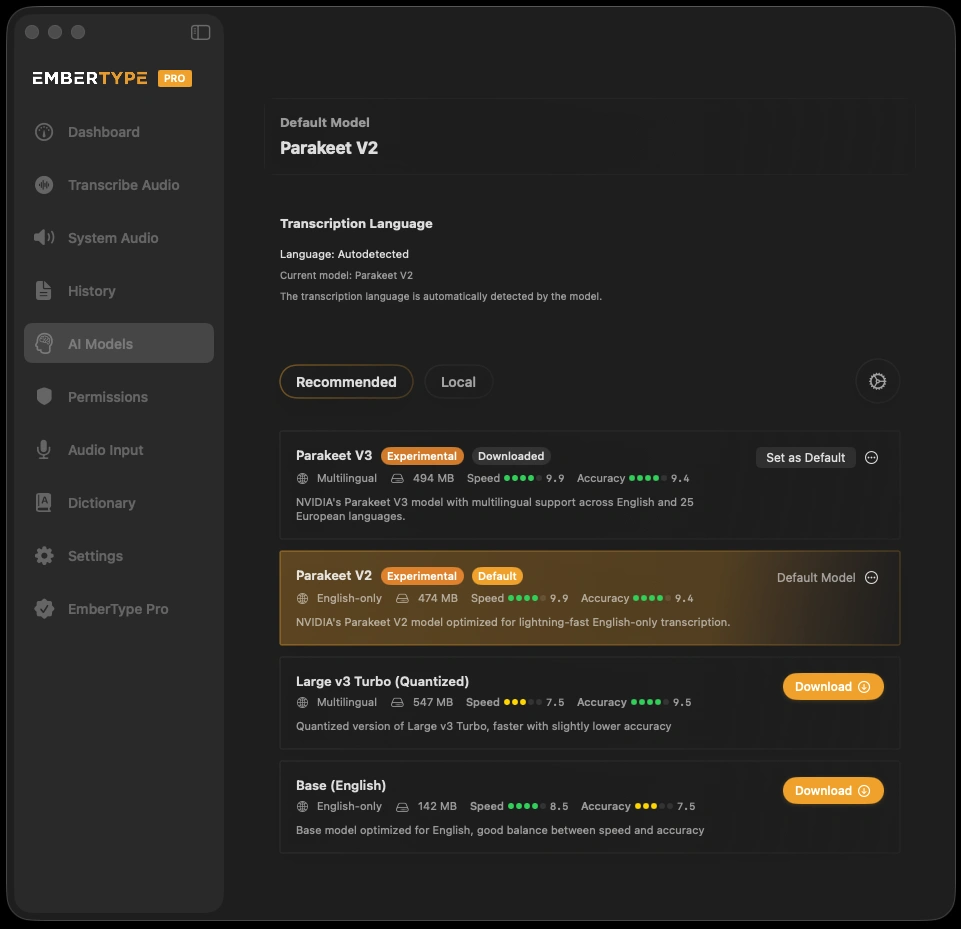
EmberType supports multiple AI engines for speech recognition, including NVIDIA Parakeet and OpenAI Whisper models. All local models process entirely on your Mac -nothing leaves your device. Cloud models are also available for users who prefer them.
Downloading a Model
- Open EmberType and go to AI Models
- Choose a model and click Download
- Wait for the download to complete
- Set it as your default model
Local Models
| Model | Size | Speed | Accuracy | Language |
|---|---|---|---|---|
| Parakeet V3 | 494 MB | Fastest | Excellent | Multilingual |
| Parakeet V2 | 474 MB | Fastest | Excellent | English |
| Large v3 Turbo (Q5) | 547 MB | Fast | Excellent | 100+ languages |
| Large v3 Turbo | 1.5 GB | Medium | Best | 100+ languages |
| Base | 142 MB | Fast | Good | Multilingual |
| Tiny | 75 MB | Fastest | Basic | Multilingual |
For most users, Parakeet V3 is the best choice -it's the fastest and most accurate local model, powered by NVIDIA and optimized for Apple Silicon. It's set as the default when you first install EmberType. For a broader look at how EmberType fits alongside other Apple Silicon AI tools, see our guide to the best AI apps for Mac in 2026.
Cloud Models
EmberType also supports cloud-based transcription through Groq, ElevenLabs, Deepgram, Mistral, Gemini, and Soniox. Cloud models require an API key and an internet connection, but can offer higher accuracy for specialized use cases. Configure them in AI Models within the app.
See our recommended models guide for detailed comparisons and recommendations.
Basic Usage and Dictation
Recording and Transcribing
- Press your configured hotkey to start recording
- Speak clearly into your microphone
- Press the hotkey again to stop and transcribe
- The transcribed text appears at your cursor position
Menu Bar
EmberType lives in your menu bar. Click the icon to:
- Start/stop recording manually
- Access settings
- View transcription history
- Quit the application
Tips for Best Results
- Speak at a natural pace, not too fast
- Minimize background noise
- Use a quality microphone if possible
- Pause briefly between sentences
Transcribe Audio
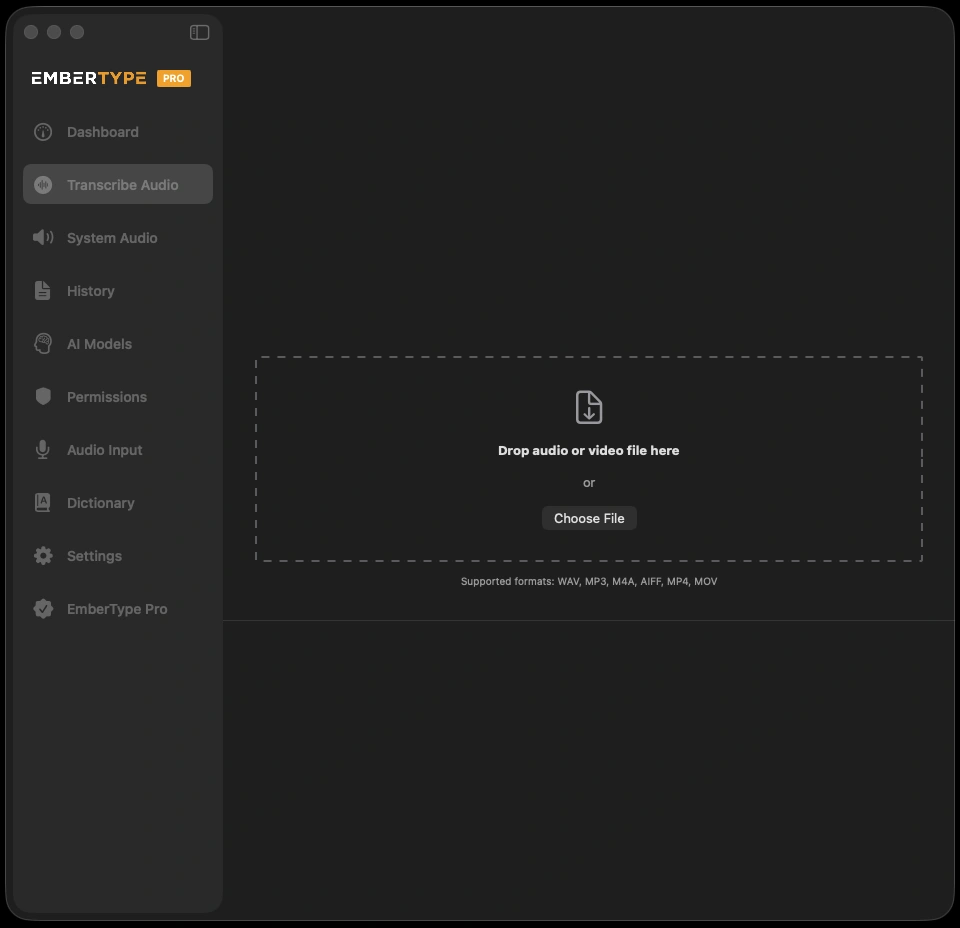
EmberType can transcribe audio and video files instantly -right on your Mac, completely offline. Drag and drop any audio or video file, and get a full transcription in seconds.
Supported Formats
WAV, MP3, M4A, AIFF, MP4, and MOV files are all supported. Just drag a file into the window or click "Choose File" to browse.
Transcription Results
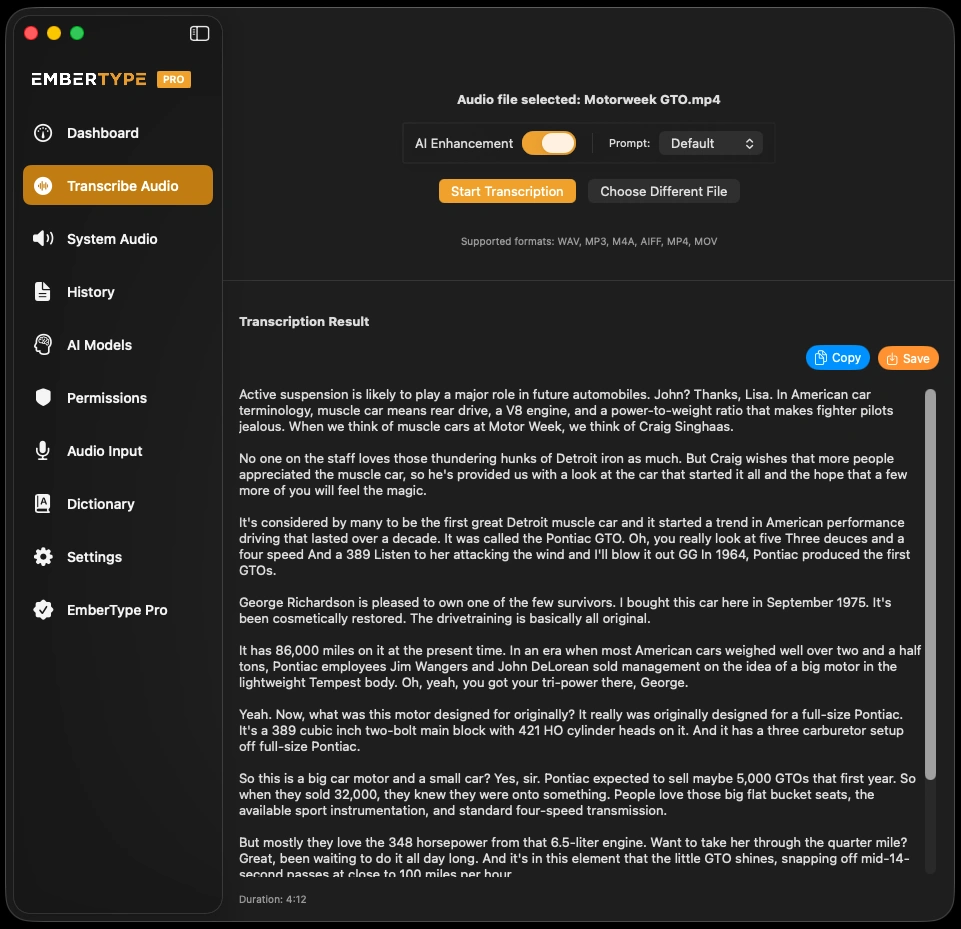
Once transcribed, you can copy the full text to your clipboard or save it as a file. Toggle AI Enhancement to clean up filler words and improve readability.
System Audio Capture
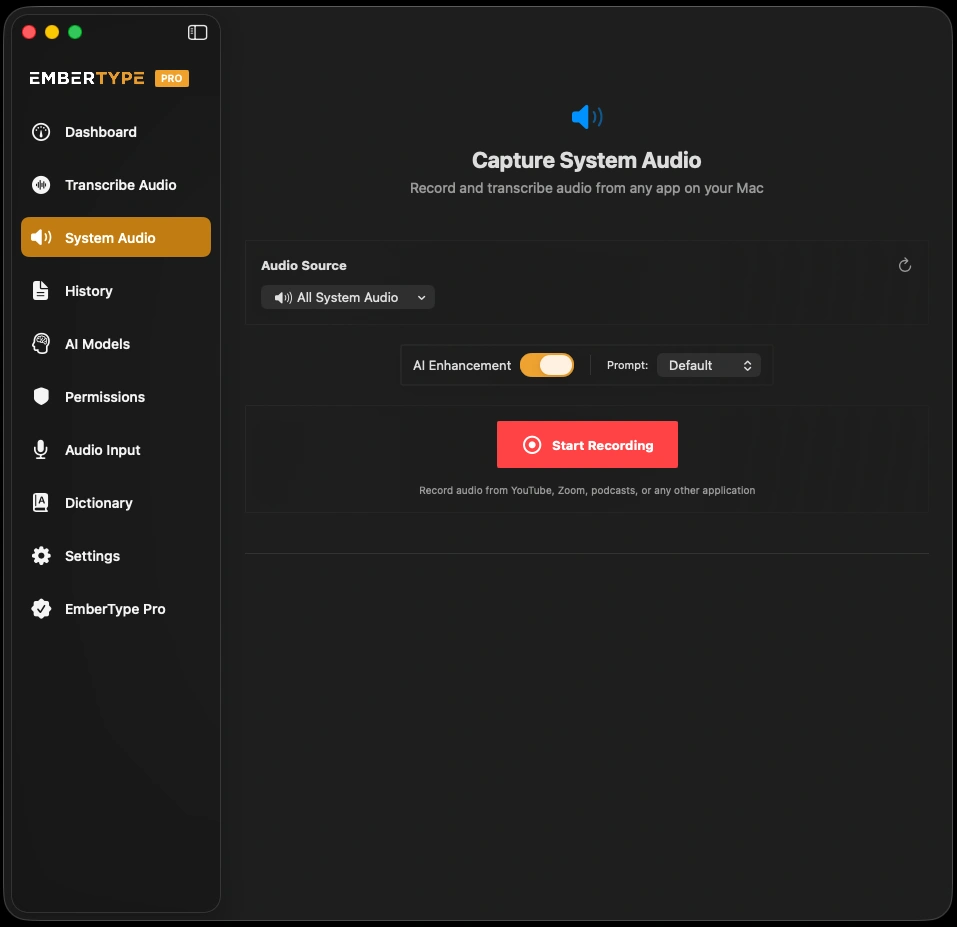
A feature few dictation apps offer -EmberType can record and transcribe any audio playing on your Mac. Transcribe YouTube videos, Zoom meetings, podcasts, or any other application's audio in real time, completely offline.
How to Use
- Open the System Audio tab
- Select your audio source -choose All System Audio or pick a specific application to capture only its audio
- Play the audio you want to transcribe
- Click Start Recording and EmberType captures what your Mac is playing
- Stop when done -your transcription appears instantly
Use Cases
- YouTube videos -Get a text transcript from any video
- Zoom / FaceTime calls -Transcribe meetings without third-party recording tools
- Podcasts -Convert episodes to searchable text
- Online lectures -Create notes from recorded classes
Transcription History
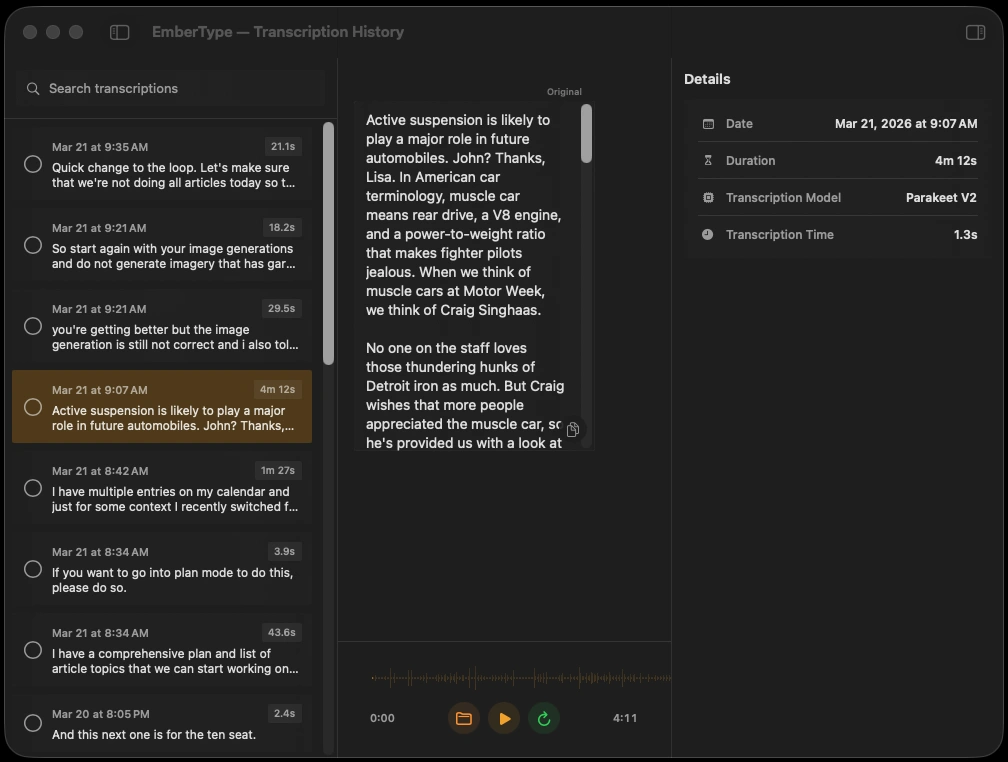
Every dictation and transcription is automatically saved in your history. Search, review, and access any past transcription instantly.
Quick Access
Open your full transcription history from anywhere with a global shortcut. Each entry shows the date, duration, and a preview of the transcribed text.
Features
- Search -Find any past transcription by keyword
- Metadata -View duration, timestamp, and details for each entry
- Quick Access shortcut -Open history from anywhere with a global hotkey
- Record Shortcut -Start a new recording directly from the history window
Keyboard Shortcuts Guide
Configure your global hotkey in Settings. The default is Right Shift.
Recording Modes
EmberType supports two recording modes:
- Toggle Mode -Press the hotkey once to start recording, press again to stop and transcribe.
- Push-to-Talk -Hold down the hotkey while speaking, release to stop and transcribe. Great for quick dictations.
You can switch between modes in Settings.
Default Shortcuts
| Action | Default | Description |
|---|---|---|
| Record | Right Shift | Start/stop recording (toggle) or hold to record (push-to-talk) |
| Cancel Recording | Escape | Cancel without transcribing |
You can change the hotkey to any key combination that works for your workflow.
EmberType Settings Guide
General
- Launch at Login - Start EmberType when you log in
- Show in Dock - Display EmberType in the Dock
Audio
- Input Device - Select your microphone
- Sound Effects - Play sounds when recording starts/stops
Transcription
- Language - Set your primary language or use auto-detect
- AI Enhancement - Apply formatting and punctuation improvements
Dictionary
Add custom words, names, or technical terms to improve recognition accuracy.
Troubleshooting Common Issues
Nothing gets typed after transcription
The Accessibility permission is missing or broken.
- Go to System Settings > Privacy & Security > Accessibility
- Remove EmberType from the list
- Re-add it from
/Applications/EmberType.app - Toggle it ON
App won't open
macOS is blocking the app because it's from an unidentified developer.
- Right-click the app in Finder
- Select "Open" from the menu
- Click "Open" in the dialog that appears
No transcription happening
You likely haven't downloaded an AI model yet.
- Open EmberType
- Go to AI Models
- Download at least one model
- Set it as your default
Transcription is inaccurate
- Try a more accurate model (Parakeet V3 is recommended)
- Reduce background noise
- Speak more slowly and clearly
- Add frequently-used terms to your Dictionary
Hotkey not working
- Ensure EmberType is running (check menu bar)
- Verify Accessibility permission is enabled
- Try a different hotkey in Settings
- Check for conflicts with other apps
License Help and Activation
Having trouble with your license? Here's everything you need to know.
About Polar.sh
EmberType uses Polar.sh as our payment processor and license manager. Polar is a third-party service that handles purchases and generates license keys -they're not affiliated with EmberType in any other way. When you buy EmberType, Polar processes your payment and emails you a license key.
Finding Your License Key
Your license key was emailed to you immediately after purchase from noreply@polar.sh. Check your inbox (and spam folder) for an email with subject line containing "EmberType".
Managing Your License
Visit polar.sh/embervista/portal and enter the email you used to purchase. Polar will email you a one-time code to sign in. From there you can:
- View and copy your license key
- See which devices are activated
- Deactivate old devices to free up slots
- Download your invoice/receipt
Device Activations
Your license allows up to 3 Mac activations. If you've used all slots and need to activate a new Mac:
- Go to polar.sh/embervista/portal
- Find your EmberType purchase
- Deactivate an old device you no longer use
- Enter your license key on your new Mac
License Not Working?
- Key rejected: Make sure you're copying the full key with no extra spaces
- Already activated: You may need to deactivate another device first
- Can't find email: Check spam, or log into Polar directly
- Still stuck: Contact us at contact@embertype.com
EmberType License Details
EmberType is open-source software licensed under GPL v3.
Why We Charge
EmberType is free to build from source, but we offer a ready-to-use app for those who value their time. When you purchase EmberType, you're paying for:
- Convenience -Download, install, and start dictating in 60 seconds. No Xcode, no compiling, no setup hassle.
- Support -Direct email support when you need help getting things working.
- Updates -New features and improvements delivered automatically.
Build It Yourself
Prefer to build from source? The full source code is available on GitHub. You'll need Xcode and some technical know-how, but everything you need is there.
Your Rights Under GPL v3
- Use the software freely
- Study and modify the source code
- Build and distribute your own versions
Attribution
EmberType uses whisper.cpp by ggerganov and NVIDIA Parakeet for speech recognition.
Full license text: GNU GPL v3
Read our Terms of Service and Privacy Policy for more information about how we handle your data.