
By Steve Mount, builder of EmberType, a Mac dictation app that types into Google Docs and every other app. The Google Docs steps are quoted from Google’s current help pages and the macOS steps from Apple’s, all checked on September 25, 2026. The two Google Docs screenshots come from a new blank document I opened for this article; I did not run an accuracy comparison, and nothing here claims one.
To use Google Docs voice typing on a Mac, open the document in the latest version of Chrome, Edge or Safari, choose Tools > Voice typing (or press ⌘+Shift+S), click the microphone and speak. Click the microphone again to stop. Your Mac must let that browser use the microphone, and Firefox is not on Google’s list of supported browsers.
Several of the guides ranking for this search still send you to Chrome (one adds Edge) and never mention Safari. Chrome-only was Google’s own wording for years, and one of Google’s pages still says it. Google’s voice typing help page now says something more interesting, and it changes how you should think about the feature on a Mac.
Turn it on: the steps and the Mac shortcut
From Google’s Type & edit with your voice help page:
- Open the document in a supported browser. Google lists “the latest versions of” Chrome, Edge and Safari.
- Click Tools > Voice typing. A microphone box appears beside the page.
- Click the microphone when you are ready, and speak “clearly and at a normal volume and pace.”
- Click the microphone again when you are done. You can also say “Stop listening.”
The keyboard shortcut on a Mac is ⌘+Shift+S, from Google’s Docs keyboard shortcuts list. That list still labels the shortcut “available in Chrome browsers,” the same Chrome-only line the older guides carry. The voice typing help page itself names three browsers. When two Google pages disagree, the feature’s own help page is the one I would trust, but if the shortcut does nothing in Safari, use the Tools menu.
A few details from the same help page that save frustration. You can fix a mistake mid-stream: click on the wrong word, correct it, and put the cursor back, without turning the microphone off. Words underlined in grey have alternatives you can see with a right-click. And if you use Docs through a work or school account and the feature is missing entirely, Google says your administrator may have turned it off.
The sentence that matters: your browser does the listening
Google’s help page says: “When you turn on voice typing or captions, your web browser controls the speech-to-text service. It determines how your speech is processed and then sends the text to Google Docs.”
Read that twice, because it means the same menu item behaves according to the browser you opened it in. Voice typing is a Docs button wired to your browser’s speech recognition. Supported browsers, recognition quality and where the audio goes are questions about your browser as much as about Google Docs.
Google does not say, on that page, where each browser processes your speech. The closest documentation I can point to is general, not Docs-specific: Mozilla’s developer reference for the browser speech recognition interface says that “on some browsers, like Chrome,” speech recognition on a web page “involves a server-based recognition engine. Your audio is sent to a web service for recognition processing, so it won’t work offline.” Google does not say that Docs uses that exact interface, so treat the connection as likely, not documented. The practical upshot is simple: if you need to know where your voice goes, the answer is in your browser’s documentation, not in Google Docs’.
Punctuation and voice commands (English only)
This is where Google Docs voice typing is better than most people realise, and where it has a hard limit. Google documents spoken punctuation (“period,” “comma,” “question mark,” “exclamation point,” “new line,” “new paragraph”) and a long list of editing commands: “select paragraph,” “bold,” “italics,” “apply heading 2,” “create bulleted list,” “insert table,” “go to the end of the line,” “delete last word,” “undo.” Say “voice commands list” and Docs shows the full set.
The limit is in a callout above that list: “Voice commands are available only in English. The account language and document language must both be English.” If you dictate in another language, or your Google account is set to another language, the commands will not run; per Google’s wording, even the punctuation ones may not work. That is the first thing to check if “period” keeps appearing as a word.
The other quirk Google documents: a command’s words can flash on the page for a moment before the command runs. If the wrong thing happens, say “undo.”
When you want dictation outside the Docs tab
Voice typing only types into the document it was opened in. It does not work in Gmail, a Slack message or the search box one tab over (I wrote about the Gmail side separately). On a Mac you already own a second option that works everywhere, including in Google Docs in any browser, Firefox included.
Apple’s Dictation guide puts it in one line: “With Dictation, you can speak to enter text anywhere you can type it.” Turn it on in System Settings > Keyboard > Dictation, then click into the document and press the Microphone key, your Dictation shortcut, or Edit > Start Dictation.
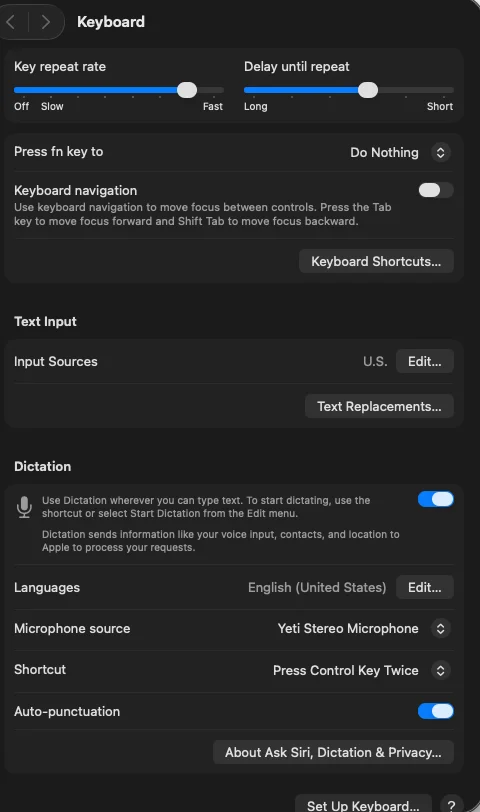
The two systems split along clear lines. Apple’s Dictation adds commas, periods and question marks automatically in supported languages, has no timeout (it stops after 30 seconds of silence), and on Apple silicon you can keep typing while it listens. Google’s help page documents spoken punctuation rather than automatic punctuation, but it has the selection and formatting commands above. Apple describes its own dictation commands as covering punctuation, emoji and “simple formatting tasks.” If you want to bold, select and build lists by voice in Docs, Google’s tool is the one built for that job. My guide to dictating on a Mac covers Apple’s setup in more depth.
| Question | Docs voice typing | macOS Dictation | A dictation app (EmberType) |
|---|---|---|---|
| Where does it work? | Inside Google Docs (and Slides speaker notes) | Anywhere you can type | Anywhere you can type |
| Which browsers? | Latest Chrome, Edge or Safari | Any; the browser is not involved | Any; the browser is not involved |
| Punctuation | Spoken commands, English only | Automatic in supported languages, or spoken | Written by the transcription model; no spoken punctuation commands; a custom dictionary for replacements |
| Edit and format by voice | Yes, a long command list (English) | Punctuation, emoji and simple formatting | No |
| Where is speech processed? | By your browser’s speech service; Google does not say where | On the Mac or by Apple; the note in Keyboard settings tells you which | On your Mac with a local model; cloud models only if you add your own API key |
| Cost | Free with Google Docs | Included with macOS | $39 once after a seven-day trial |
Where EmberType fits, and who does not need it
If you write in Google Docs, in English, in Chrome, Edge or Safari, and you like driving formatting with your voice, Google’s voice typing is free and does something EmberType does not: EmberType has no spoken commands for selecting or bolding text. Use it. If you want free dictation that follows you out of the Docs tab, macOS Dictation is already installed.
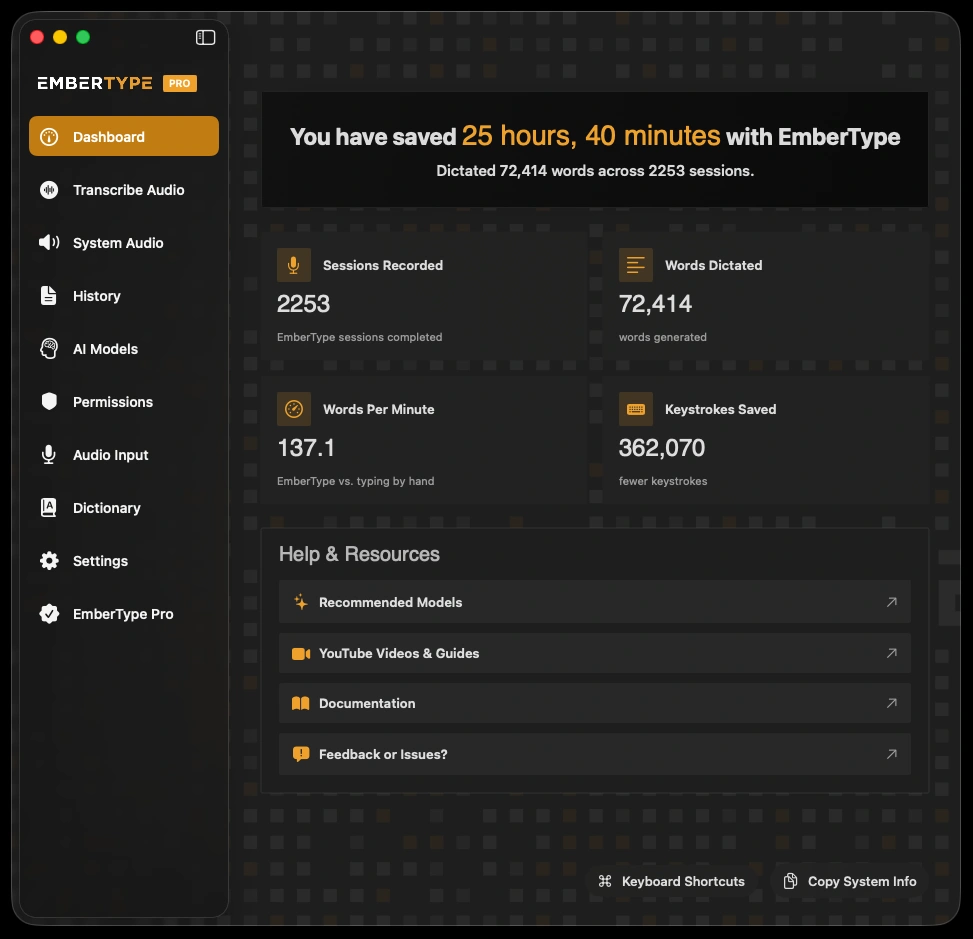
EmberType is for the narrower case, and here is how it actually works, from its source code rather than its marketing. You hold a shortcut key and speak (or toggle it on and off); the speech is transcribed by a model running on your Mac, and the finished text is pasted at your cursor in whatever app is in front, with your clipboard put back afterwards. Because it pastes like a keyboard would, the browser never has to support speech at all: Google Docs in Firefox gets the same text as Docs in Safari, and so do Gmail, Slack and Word. You can teach it names and jargon through its dictionary. The trade-off is the flip side of the same design: text arrives when you stop speaking, not word by word, and there are no voice commands for formatting.
Dictate into Google Docs in any browser
EmberType transcribes on your Mac with local models and types wherever your cursor is: Docs, Gmail, Slack, Word. Try it free for seven days.
Download EmberTypeApple Silicon · macOS 14+ · $39 one-time after the trial
Google Docs voice typing not working on a Mac? Check these in order
- Voice typing is missing, or nothing happens. Check the browser first. Google supports the latest Chrome, Edge and Safari; Firefox is not on the list, and an out-of-date browser may not qualify. On a work or school account, Google says an administrator can switch the feature off.
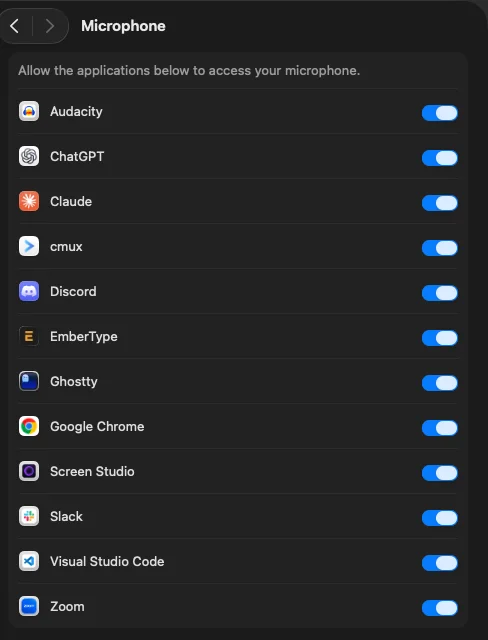
- The microphone button does nothing. macOS has to let the browser use the microphone: System Settings > Privacy & Security > Microphone, then switch on Chrome or Edge (Apple’s steps). The browser also keeps its own per-site permission. In Safari, that is Safari > Settings > Websites > Microphone, where docs.google.com can be set to Ask, Deny or Allow (Apple’s Safari guide). In Chrome, Google’s microphone help path is Settings > Privacy and security > Site settings > Microphone, where a blocked site can be changed back to Allow. On a managed Chrome, only the administrator can change it.
- “We’re having trouble hearing you.” Google’s own fixes: move somewhere quieter, plug in an external microphone, or raise the input volume.
- It is listening to the wrong microphone. Check the Mac’s selected input in Sound settings, and in Chrome, the default microphone under Site settings > Microphone. Google also says to make sure no other app is using the microphone.
- “Period” and “new line” are typed as words. Voice commands need an English account language and an English document language. Check both.
- Commands run late or do the wrong thing. Google suggests speaking slowly, pausing before and after each command, and saying “undo” when the wrong one fires.
If macOS Dictation is the thing not listening, my Apple dictation not working guide covers that side. The same app-versus-system split shows up in Microsoft Word, where the built-in Dictate button depends on your licence rather than your browser. More writing-by-voice guides are in the writers hub.