
By Steve Mount, builder of EmberType, a Mac dictation app that types into Word and every other app. The Word steps below are quoted from Microsoft’s current Dictate documentation and the macOS steps from Apple’s Dictation guide, both checked on September 18, 2026. Word is not installed on the Mac I write on, so this is a documented guide, not a hands-on test of Word’s button.
To dictate in Word on a Mac, go to Home > Dictate or press Option+F1, provided you are signed in to a Microsoft 365 subscription with an internet connection. If the Dictate button is not there, check first that you are signed in with an active Microsoft 365 subscription, which is where Microsoft starts; if you are, the answer is almost certainly a one-time Office licence, and that is not a setting you can change: use macOS Dictation instead (Edit > Start Dictation), which works inside any Word.
That second sentence is the part most guides skip. Two separate dictation systems can type into a Word document on a Mac. They come from different companies, process your voice in different places, and only one of them cares which Word you bought.
1. Word’s Dictate button (Microsoft’s dictation)
Microsoft’s Dictate your documents in Word page gives the Mac steps as:
- Open a new or existing document and go to Home > Dictate while signed in to Microsoft 365 on a mic-enabled device. On a Mac you can also press Option (⌥) + F1.
- Wait for the button to turn on and start listening, then speak. Punctuation can be spoken (“period”, “comma”, “new line”) or, with auto-punctuation on, inserted for you.
- Click the button again to stop. To resume, Microsoft documents Alt + ` (the backtick key) or the microphone icon in the floating dictation bar.
Two details matter. Microsoft describes Dictate as speech-to-text “with a microphone and reliable internet connection”: your voice goes to Microsoft’s speech service, which, according to the same page, does not store the audio or the transcribed text. And the page documents no keyboard shortcut for starting dictation on Windows at all. At least one guide ranking for this search gives “Alt + apostrophe” as the Word shortcut; that key combination is not in Microsoft’s documentation, so if it does nothing on your keyboard, you have not missed a setting.
2. Why the Dictate button is missing
Microsoft’s page says it in a callout: “Can’t find the Dictate button? The dictation feature is only available to Microsoft 365 subscribers.” The troubleshooting section repeats it for Windows: “Dictate is not available in Office 2016 or 2019 for Windows without Microsoft 365.”
Here is the awkward part. The same page’s “Applies To” list names Word 2024, Word 2024 for Mac, Word 2021 and Word 2019 alongside the subscription versions, and Microsoft’s Office 2024 FAQ never mentions Dictate either way. Community answers on Microsoft’s own forums point in both directions. I cannot resolve that contradiction from documentation, and I would not trust a third-party page that resolves it flatly in either direction. What I can say is which check settles it for your copy of Word: open Word’s account or licence information (Microsoft’s Windows path is File > Account; on a Mac, look in the Word menu for the About and licence entries) and read the product name. If it says Microsoft 365, the button should be there after you sign in and update; if it names Office Home 2021 or 2024, plan on the button not appearing, and go to section 3.
If you are on Microsoft 365 and the button is still missing, Microsoft’s list is short: be signed in with an active subscription, and on Windows be on Windows 10 or above. If the button is there but greyed out, the only cause Microsoft gives is a document in a read-only state, and its separate microphone entries cover a muted mic, an unplugged one, or one another app has taken. On a Mac, also check that System Settings > Privacy & Security > Microphone has Word switched on. Microsoft files Dictate under connected experiences that analyze your content, which you can switch off yourself from File > Account > Manage Settings, so check that they are on.
3. macOS Dictation inside Word (Apple’s dictation)
Apple’s Dictation guide starts with the sentence that makes this whole article shorter: “With Dictation, you can speak to enter text anywhere you can type it.” A Word document is somewhere you can type. So:
- Turn it on once: System Settings > Keyboard, scroll to Dictation, switch it on and click Enable. Pick a language and a microphone, and note the shortcut shown; on my Mac it is “Press Control key twice.”
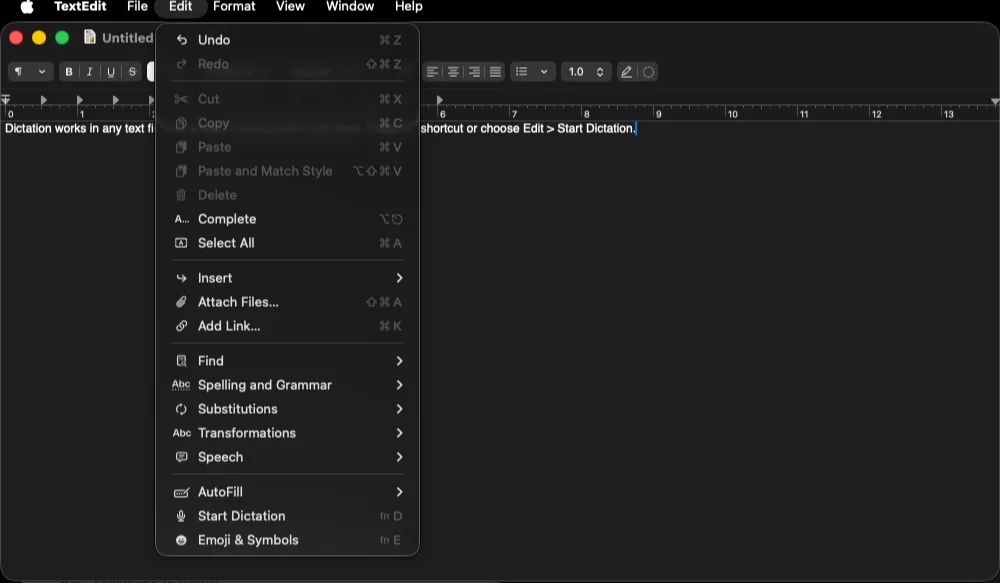
- In Word, click where the text should go, then press the shortcut, press the Microphone key if your keyboard has one, or choose Edit > Start Dictation from Word’s own menu bar.
- Speak. Apple says there is no timeout; dictation stops by itself after 30 seconds of silence, and on an Apple silicon Mac you can keep typing while you talk.
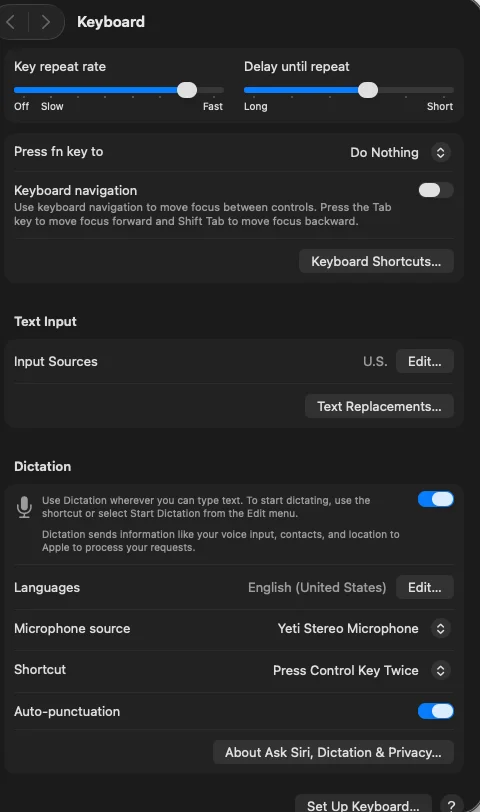
This route works whatever licence Word has, because Word is not involved; macOS is typing for you. It also has nothing to do with your Microsoft account, which is why the most helpful answer on the Word 2019 user’s Microsoft Q&A thread that ranks for this search sends them to macOS dictation instead. Two things to know: Apple’s guide says to read the text under the Dictation toggle to see “whether you need an internet connection or whether your voice inputs and transcripts for general text Dictation … are processed on your device and not sent to Siri servers,” so do not assume either; and if you use Voice Control, standard Dictation is unavailable while it is on. My general guide to dictating on a Mac covers the punctuation commands and the setup traps in more detail.
Which one should you use?
| Question | Word Dictate | macOS Dictation | A dictation app (EmberType) |
|---|---|---|---|
| Which Word do I need? | Microsoft 365 subscription | Any | Any |
| Where is my voice processed? | Microsoft’s servers (internet required) | On device or Apple’s servers, depending on language; the settings note tells you | On your Mac with a local model; optional cloud AI you can leave off |
| Works outside Word? | No (Outlook and PowerPoint have their own) | Anywhere you can type | Anywhere you can type |
| Names and jargon | No custom vocabulary documented | System vocabulary | Your own dictionary of names and terms |
| Cost | Part of the subscription | Included with macOS | $39 once after a seven-day trial |
If you already pay for Microsoft 365 and only ever dictate into Word, use Word’s button; it is right there, and Microsoft documents a full set of spoken punctuation commands plus an auto-punctuation toggle. If you bought Office outright, macOS Dictation is the free answer and is one keystroke away. The dictation app case is narrower and it is mine to make, so here it is plainly: you want the same dictation in Word, Mail, Slack and a browser; you want names, product terms or medical vocabulary recognised because you told the app about them; or you want the speech model on your own Mac rather than on Microsoft’s or Apple’s servers.
Dictate into Word without the subscription question
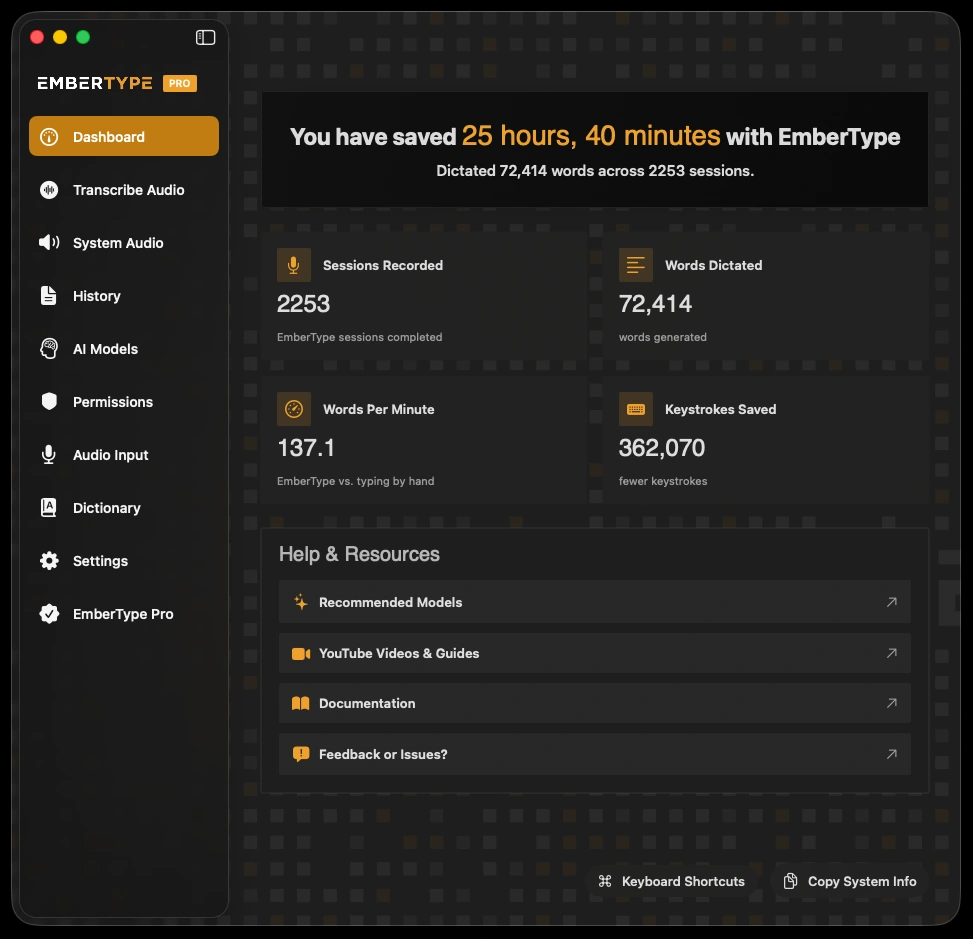
EmberType works in any Word, and in every other app on your Mac, with local speech models. Try it free for seven days.
Download EmberTypeApple Silicon · macOS 14+ · $39 one-time after the trial
Quick fixes when nothing is listening
- Word’s Dictate turns on, then stops immediately. Check the internet connection first; Microsoft’s dictation does not work offline. Then check that Word, not just macOS, has microphone permission.
- macOS Dictation types into the wrong place. Click inside the document before pressing the shortcut; Dictation inserts at the current insertion point.
- The wrong microphone is being used. Both systems follow the Mac’s selected input, and macOS Dictation also has its own Microphone source setting under Keyboard > Dictation. The workaround offered in the Microsoft Q&A thread that ranks for this search was simply to pick the internal microphone there.
- Dictation works elsewhere but not in Word. That is usually a permission or a licence, not a Word setting. My Apple dictation not working guide walks through the macOS side.
The same two-systems logic applies in Gmail and any other app: the built-in button belongs to the app and its licence; macOS Dictation and a dictation app belong to you. More writing-by-voice guides are in the writers hub.