
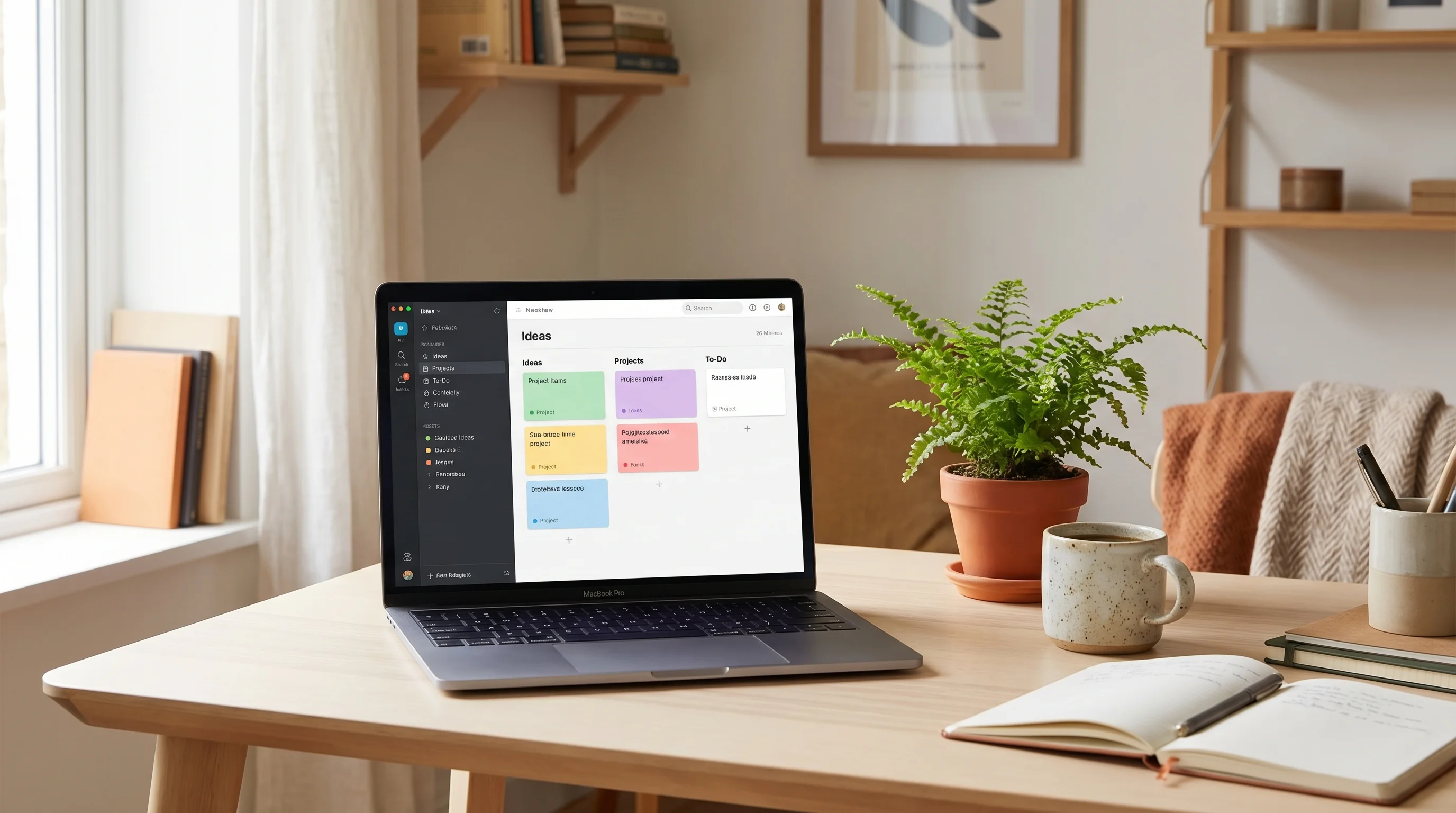
What You'll Learn
- Notion has no built-in voice typing on Mac — Notion AI generates text, but doesn't transcribe yours
- A system-wide dictation app is the right tool — one setup covers the Notion desktop app, Notion in browsers, and Notion AI
- It works in databases too — property fields, inline edits, comment threads
- Your notes stay private when dictation runs locally instead of uploading audio to a vendor


Why People Want to Dictate Into Notion
Notion users write more than most people. A good Notion setup is daily journaling, project dashboards, meeting notes, personal wiki entries, travel plans, book notes, fitness logs, and more — all of it ending in text. When typing becomes the bottleneck, capture quality drops. Quick thoughts don't get logged. Meeting notes stay in half-formed bullets. The second brain gets under-fed.
Voice solves that, if the tool works everywhere you work in Notion. Dictating into a daily note is easy; dictating into a database row or an inline tag is harder. The right tool makes all of it equally easy.
Notion's Native Options (Spoiler: There Aren't Really Any)
Let's clear this up because the search results don't. As of 2026:
- Notion does not have built-in voice typing on Mac. No mic icon, no dictation toggle, no voice input feature in the desktop app or web.
- Notion AI is not voice-to-text. It's a text generation tool that takes text prompts and writes text output. You can speak your prompt to Notion AI — using a dictation tool — but Notion AI itself doesn't listen.
- The Notion mobile app has an audio recording block. It records audio attachments (not transcripts). The desktop app doesn't have this.
- Notion on iPhone supports iOS Dictation, which is solid for short entries. This doesn't help on Mac.
So to dictate into Notion on Mac, you need to bring your own dictation tool. Two real options: Apple's built-in dictation, or a dedicated Mac dictation app.
Apple Dictation: Tries Hard, Falls Short
macOS has built-in dictation. Tap fn fn in any text field and speak; it types what you say. In Notion's main editor, it mostly works. In Notion's database fields, search boxes, and inline property editors, it's inconsistent — sometimes launches, sometimes doesn't, sometimes cuts off early.
The bigger problem is quality. Apple's dictation is tuned for short utterances like asking Siri questions or dictating a quick text message. For a multi-paragraph meeting note, accuracy and punctuation break down fast. We dug into this in Apple Dictation Not Working on Mac.
The Real Solution: A System-Wide Mac Dictation App
A Mac-native dictation app that types into any focused text field on the system — that's the tool Notion users actually need. EmberType is one of these. It doesn't care whether you're in the Notion desktop app, Notion in Safari, Notion in Chrome, or Notion in Arc — same shortcut, same behavior, everywhere.
Specifically for Notion, EmberType works in:
- Any page body (paragraphs, headings, toggles, callouts, quotes)
- Database title fields and text property columns
- Inline property edit popovers
- Comments and discussion threads
- The Notion AI prompt box
- Slash command search
- The global search bar (
Cmd+P) - Notion sub-pages, synced blocks, linked databases — anywhere a cursor lands
Setup: Two Minutes Start to Finish
- Download EmberType (free 7-day trial).
- Pick a Whisper model. For note-taking use cases, Large v3 Turbo is the sweet spot — accurate and fast.
- Set a global shortcut.
Option+Spaceor a double-tap on the right Option key are the most common choices. Pick something that doesn't conflict with Notion's own shortcuts. - Optional but recommended: open the custom dictionary and add Notion-specific vocabulary. Project names, team member names, client names, product codenames, unusual spelling. They'll transcribe correctly every time.
That's it. Open Notion (app or browser), focus any text field, press your shortcut, speak, and EmberType types the transcription into Notion. Release the shortcut to stop.
Workflows That Change With Voice
Daily journaling
Journaling by typing feels like a task. Journaling by voice feels like talking to yourself — which is what a journal is for. Open your daily note in Notion, hit your shortcut, and talk for five minutes. You'll write three times more, and the content will be more honest because your internal censor doesn't engage as hard when you're talking.
We covered this workflow in more depth in Voice Journaling App for Mac.
Meeting notes in real time
During a meeting, dictate one-sentence thoughts between speakers. Your notes capture more of the actual discussion instead of the half you could type fast enough. After the meeting, use Notion AI to clean the raw dictation into structured minutes.
If you want to transcribe the entire meeting rather than take notes, see Transcribe Zoom Meetings on Mac. Different workflow, same underlying tool.
Database entries and quick captures
Notion databases are where most users hit the wall. Entering rows into a reading log, CRM-style contacts database, or expense tracker is tedious by keyboard. With voice, open a new row, press shortcut, speak the title and any text-property values. A database that took 10 minutes to update takes 90 seconds.
Second brain / Zettelkasten
People running Zettelkasten or similar PKM systems know the friction: an idea needs a permanent note, but writing it up takes effort, so it never gets logged. Speaking a 150-word note takes 40 seconds. The friction drops below the threshold where the idea would otherwise escape.
Speaking prompts to Notion AI
This one's underrated. Notion AI is a text-in, text-out feature. Type / and “Ask AI,” focus the prompt input, and speak your instruction: “Rewrite this page as a weekly status update for stakeholders, keeping bullet form.” Longer, more specific prompts get better output. Speaking them is effortless.
Tips for Dictation That Actually Feels Good
Speak in complete thoughts
Don't dictate one sentence at a time. Dictate a full thought — a paragraph, a bullet point, a database entry — and release. Whisper AI is a context-aware model; it uses surrounding sentences to get ambiguous words right. Starving it of context makes accuracy worse.
Use AI Enhancement for messy input
Spoken language has filler. “Um,” “like,” “so basically,” “I mean, I guess.” EmberType's AI Enhancement can strip filler and polish the text before it's typed. For journaling, turn it off (you want your actual voice). For meeting notes, turn it on.
Use the dictionary for Notion terminology
Notion users have a lot of internal jargon that Whisper guesses wrong: database view names, page titles, project codenames, client abbreviations. Add them once to the dictionary. They'll never transcribe wrong again.
Mind the cursor
EmberType types at wherever your cursor is. If you press the shortcut while a toggle block is collapsed, the text goes somewhere weird. If you press while inside a /command menu, it searches for commands. Click into the exact spot you want text before pressing your shortcut.
The Privacy Angle Worth a Sentence
Notion is where many people keep their most personal writing — therapy notes, financial plans, relationship reflections, health logs, career decisions in progress. When you dictate that content through a cloud service, the audio is received, processed, and potentially logged by a third party. When you dictate it through a local tool like EmberType, the audio never leaves your Mac. Notion still stores the text, but the transcription layer stays private.
It's a small difference that matters a lot for certain categories of writing. We argued the general case in The Voice Assistant Privacy Crisis.
Bottom Line
Notion is built for a lot of writing, and Mac doesn't give you a good way to do that writing by voice natively. Apple's dictation helps for short entries but falls apart at length. Cloud-based browser extensions create friction and privacy exposure.
A system-wide local dictation app is the right answer for Notion users specifically: covers every Notion surface from journaling to databases to AI prompts, keeps audio local, one-time cost, one setup. EmberType was built for exactly this kind of write-everywhere workflow.

Free Mac Dictation Tips
Get tips on voice-to-text, dictation workflows, and productivity. No spam.
Unsubscribe anytime. We never share your email.
You're in! Check your inbox.
Voice Type Into Any Notion Page
System-wide dictation for Mac. Works everywhere in Notion. 7-day free trial.
Download EmberType FreemacOS 14+ required. Apple Silicon only. $39 after trial.