

This is a setup-and-reference guide for talk-to-type on Mac. We'll enable Apple's built-in dictation (it's already on your machine), pick a keyboard shortcut you can actually live with, and walk through the voice commands that let you dictate proper sentences instead of word salad. If you decide later that you want a more accurate, fully offline option, there's a brief note at the bottom on EmberType — the Mac dictation app we build — and links to deeper comparisons if you want to dig in.
The 30-Second Version
- Enable: System Settings → Keyboard → Dictation → toggle on
- Shortcut to start: press Fn (Globe) twice — works in any text field on macOS
- Voice commands work: say "period," "comma," "new line," "new paragraph," "cap" before a word
- Stop: press Fn again, click Done, or press Escape
- If accuracy isn't good enough, try a third-party dictation app like EmberType (Whisper AI, 100% offline, $39 one-time)
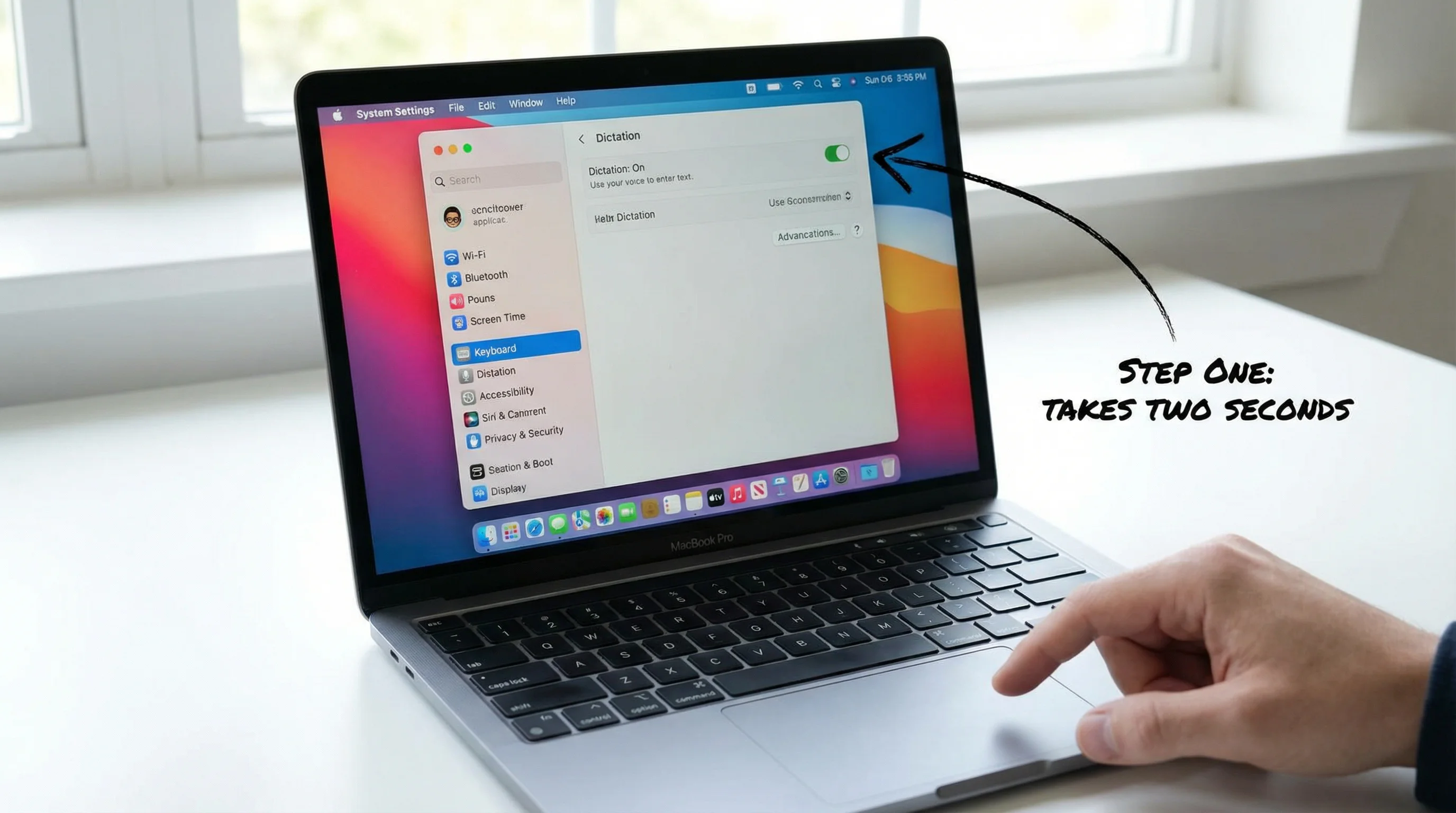
How to Enable Talk to Type on MacBook
Every Mac -MacBook Air, MacBook Pro, iMac, Mac Mini -has Apple Dictation built in. Here's the setup:
Step-by-Step: Enable Apple Dictation
- Open System Settings -Click the Apple menu in the top-left corner, then select "System Settings"
- Go to Keyboard -In the sidebar, scroll down and click "Keyboard"
- Enable Dictation -Scroll to the bottom and toggle Dictation on. macOS will ask you to confirm -click "Enable"
- Choose your language -Select your primary language from the dropdown
- Set your shortcut -The default is pressing Fn (Globe) key twice. You can change this to Left Command twice, Right Command twice, or either Command twice
- Test it out -Open any text field (Notes, TextEdit, Safari), click to place your cursor, and press your dictation shortcut. A microphone icon appears -start talking
That's it. Your MacBook is now set up for talk to text. Press the shortcut, speak, and your words appear.
Keyboard Shortcuts for Dictation on Mac
- Start/stop dictation: Press Fn (Globe) twice (default) -works in any text field across macOS
- Alternative shortcuts: Change in System Settings > Keyboard to Left Command x2, Right Command x2, or either Command x2
- Voice commands while dictating: Say "new line" for a line break, "new paragraph" for a paragraph break, "cap" before a word to capitalize it
- Punctuation commands: Say "period," "comma," "question mark," "exclamation point," "open quote," "close quote"
- Stop dictation: Press Fn again, click "Done," or press Escape
If you find yourself having trouble with Apple Dictation not working, check that you've granted microphone permissions in System Settings > Privacy & Security > Microphone.
Talk to Type Voice Commands on Mac (Full Reference)
Apple's dictation accepts a full set of voice commands — punctuation, formatting, capitalization, even cursor movement — but they're scattered across the macOS user guide and easy to miss. Here's the complete list in one place. Speak any of these mid-dictation and Mac will insert the symbol or perform the action instead of typing the literal word.
Punctuation You'll Use Every Day
| Say this | You get |
|---|---|
| "period" or "full stop" | . |
| "comma" | , |
| "question mark" | ? |
| "exclamation point" or "exclamation mark" | ! |
| "colon" | : |
| "semicolon" | ; |
| "apostrophe" | ' |
| "open quote" / "close quote" | " " |
| "open parenthesis" / "close parenthesis" | ( ) |
| "hyphen" | - |
| "dash" or "em dash" | — |
| "ellipsis" or "dot dot dot" | … |
| "slash" | / |
| "backslash" | \ |
Line Breaks & Formatting
- "new line" — single line break (like pressing Return once)
- "new paragraph" — double line break (Return twice, with blank line)
- "tab key" — inserts a tab
- "space bar" — forces an extra space
- "no space" — suppresses the next automatic space
- "no space on" / "no space off" — toggle suppression for a sequence of words
Capitalization Commands
- "cap" before a word — capitalize the first letter ("cap monday" → "Monday")
- "caps on" / "caps off" — capitalize every following word until you say "caps off"
- "all caps" before a word — make the next word ALL UPPERCASE
- "all caps on" / "all caps off" — make a sequence of words ALL UPPERCASE
- "no caps" before a word — force lowercase, even at start of sentence
- "no caps on" / "no caps off" — force a run of words to stay lowercase
Numbers, Symbols, & Money
- "numeral" before a number — force "1" instead of "one"
- "Roman numeral" before a number — "Roman numeral seven" → "VII"
- "dollar sign", "euro sign", "pound sign", "yen sign" — currency symbols
- "percent sign" — %
- "at sign" — @
- "hashtag" or "pound sign" — #
- "asterisk" — *
- "ampersand" — &
- "plus sign", "minus sign", "equals sign" — + − =
Emoji & Special Characters
- "smiley" — :)
- "frowny" — :(
- "winky" — ;)
- "copyright sign", "registered sign", "trademark sign" — © ® ™
- "degree sign" — °
Two practical notes from using these daily. First: macOS auto-capitalizes the first word of a sentence, so you almost never need "cap" at the start of a paragraph — it's mostly for proper nouns mid-sentence. Second: "no space" is the command nobody knows about that fixes the most annoying dictation tic — when you want to dictate something like a URL or a hashtag-style phrase without macOS inserting spaces around it.
Mac Dictation Keyboard Shortcuts
The dictation toggle has only a handful of legitimate keyboard shortcut options on macOS. Here's the full list — anything else is a third-party app.
| Shortcut | What it does |
|---|---|
| Press Fn (Globe) twice | Default — start/stop dictation in any text field |
| Right Command twice | Alternative trigger (set in System Settings) |
| Left Command twice | Alternative trigger |
| Either Command twice | Either-side option for ambidextrous setups |
| Press Fn while dictating | Stops dictation immediately |
| Press Escape | Cancels dictation |
To change the trigger: System Settings → Keyboard → Dictation → Shortcut. Most people end up on Right Command twice because the Globe key is awkwardly placed on a lot of MacBook keyboards. If you are starting from scratch, our full walkthrough of how to dictate on Mac covers the shortcut options and the trade-offs of each in more detail.
Quick Troubleshooting
If the basics aren't working, ninety percent of the time it's one of these. For a full walkthrough of every Mac dictation failure mode, see our Apple Dictation not working on Mac guide.
- Mic permission — System Settings → Privacy & Security → Microphone. Whatever app you're dictating into needs to be on the list. This is the #1 cause of "dictation just doesn't start."
- Right input device selected — System Settings → Sound → Input. If Mac is listening to a Bluetooth headset that's powered off, dictation will look like it's working but produce silence.
- Cursor in a real text field — click into the text area before pressing the shortcut. macOS dictation needs an active editable cursor.
- Reload the language model — System Settings → Keyboard → Dictation → uncheck the language, recheck it. macOS will re-download. Fixes a surprising number of accuracy problems.
- Background noise — fans, AC, music, and TV degrade dictation accuracy more than people realize. The single biggest fix isn't software — it's closing a window.
If Apple's Dictation Isn't Cutting It
Apple's built-in dictation is fine for short texts and quick notes. For longer-form work — emails, drafts, code comments, technical writing — many users hit a wall on accuracy and want to upgrade. We build EmberType, a Mac dictation app that runs OpenAI's Whisper AI entirely on your machine. It's $39 one-time, 100% offline (your voice never leaves your Mac), works in any app, and adds AI cleanup that strips out filler words automatically.
If you want to compare options before deciding, our best AI dictation apps for Mac (2026) roundup covers the landscape. If you just want to try the upgrade, the trial is free for 7 days with no credit card.
Try EmberType Free for 7 Days
100% offline. Works in any Mac app. No subscription.
Download EmberType FreemacOS 14+ • Apple Silicon • $39 one-time after trial
Frequently Asked Questions

Free Mac Dictation Tips
Get tips on voice-to-text, dictation workflows, and productivity. No spam.
Unsubscribe anytime. We never share your email.
You're in! Check your inbox.
Want a Mac Dictation App That Just Works Better?
EmberType runs Whisper AI on your Mac, 100% offline, with automatic filler-word cleanup. 7-day free trial.
Download Free TrialmacOS 14+ • Apple Silicon • $39 one-time after trial